.svg)
Looking Inside Chromium’s On-Device AI Stack
The modern browser has quietly evolved into a powerful AI engine. Let's explore the underlying layers of Chromium’s on-device machine learning stack and the mechanics driving it.

From reducing annoying notifications to providing translations, a sophisticated system of AI models is working behind the scenes in your browser every time you browse the web. In this article, we’ll take a technical deep dive into the “why” and “how” local AI models are used in Chromium. We’ll go over how the Island Enterprise Browser builds on that foundation to bring AI safely into the workplace.
Why does Chromium use local AI models?
In general, when we talk about running AI models locally, there are a few benefits:
- Privacy: Data processed by the model never leaves the user's device, keeping sensitive information private.
- Latency: Executing the model on-device removes network latency, leading to immediate results and a smoother user experience.
- Reliability: Features powered by local models remain functional even when the user is offline or has an unstable network connection.
- Cost: Running inference locally offloads computational cost from cloud servers.
Now let's look at how Chromium actually puts local AI to work. Its usage in the browser can be divided into two groups:
- Internal Chromium usage: AI models that Chromium uses to implement something for the browser itself to use. They’re managed by Optimization Guide, which we’ll dive into shortly.
- AI services: APIs meant for web developers to implement AI-based features in their web pages. Some notable examples are the newly-added Summarizer API and WebNN, which we will also cover.
For both of these, Chrome can download the AI models from Google servers. These are downloaded on demand, meaning that they won’t be on your device unless a feature that needs them is triggered.
Note that while Chromium and Chrome sound similar, they are not the same thing. Chromium is an open-source project, while Chrome is the Google product that is based on Chromium. Some features are only available through Chrome and don’t ship with vanilla Chromium due to licensing.
AI for internal use - Optimization Guide
Optimization Guide is the name of the Chromium service responsible for downloading, managing, and executing local AI models used internally in Chromium.
Why is it called “Optimization Guide”? The name is mostly a historical artifact. Initially (circa 2017), it was meant for optimizing pages by giving the browser hints, such as disabling JS in advance, suggesting which resources to load, or redirecting to a lite page version. The first addition of AI to this mechanism occurred around 2019, when a model for predicting if a page load will be ‘painful’ was added. From then on, the same infrastructure for managing and running the models was reused for additional tasks, many of which have nothing to do with page optimization.
We can list all of the tasks that the Optimization Guide can support by looking at the models.proto file included in Chromium’s source here. A proto file contains protobuf declarations that define the contract Chromium has with Google’s backend for requesting the download of an AI model. In this file, we can see the OptimizationTarget enum, which contains around 70 entries.
By looking at these entries, we get a sense of what the main topics in the Optimization Guide are:
- Page content analysis
- PAGE_TOPICS_V2, EDU_CLASSIFIER
- Security and safety
- CLIENT_SIDE_PHISHING, SCAM_DETECTION
- User segmentation
- SEGMENTATION_SHOPPING_USER, SEGMENTATION_VOICE
- Omnibox ordering and suggestions
- OMNIBOX_URL_SCORING,
- OMNIBOX_ON_DEVICE_TAIL_SUGGEST
- Permission approval predictions
- NOTIFICATION_PERMISSION_PREDICTIONS
- Autofill improvements
- PASSWORD_MANAGER_FORM_CLASSIFICATION
It is worth noting that not all scenarios in this enum are actually implemented by machine learning models—some of them are implemented by trivial if chains. For example: SEGMENTATION_FEED_USER, which is meant to categorize users who use the new tab page feed, is implemented by simple checks if the feed was engaged with at least twice.
Use case spotlight: NOTIFICATION_PERMISSION_PREDICTIONS
There are many models in the Optimization Guide, so let’s focus on a specific example to get a sense of what’s happening: OPTIMIZATION_TARGET_NOTIFICATION_PERMISSION_PREDICTIONS.
This model is used for determining whether the user is likely to accept a request from the web page to send notifications. If the user is deemed as VERY_UNLIKELY, Chromium shows a quieter indicator instead of the usual notification request prompt.
Chromium also wrote a (non-technical) blog post about this feature; you can read it and see some pictures here.
The class that invokes this model is called PermissionsAiUiSelector. By looking at its implementation, we can see that the inputs to this model are various statistics (represented as floats and integers) about notification permissions and permissions in general—for example, some of the inputs are:
- Average grant/deny/dismiss/ignore rates
- Total number of prompts (all types)
- Total number of prompts (notifications specifically)
All of these are counted in the span of the last 28 days - this is a hardcoded value in the code. To change it, the model will need to be retrained.
These values are fed to the local model to produce a verdict. This model is kept on disk, and it is named model.tflite, like many other Optimization Guide targets. As the file extension suggests, Chromium uses the TFLite framework, which was developed by Google for high-performance execution of models on edge devices. It is worth noting that TFLite is now superseded by LiteRT, and Chromium is in the process of migrating to this newer framework.
As a side note: All of the models in the Optimization Guide are executed on the CPU, not the GPU (or dedicated AI hardware like NPU). As we will soon see, this is reasonable for the type of models used by the Optimization Guide, which tend to be quite lightweight.
In this case, the model is just 31KB on disk. We can use tools like netron.app to visualize it:
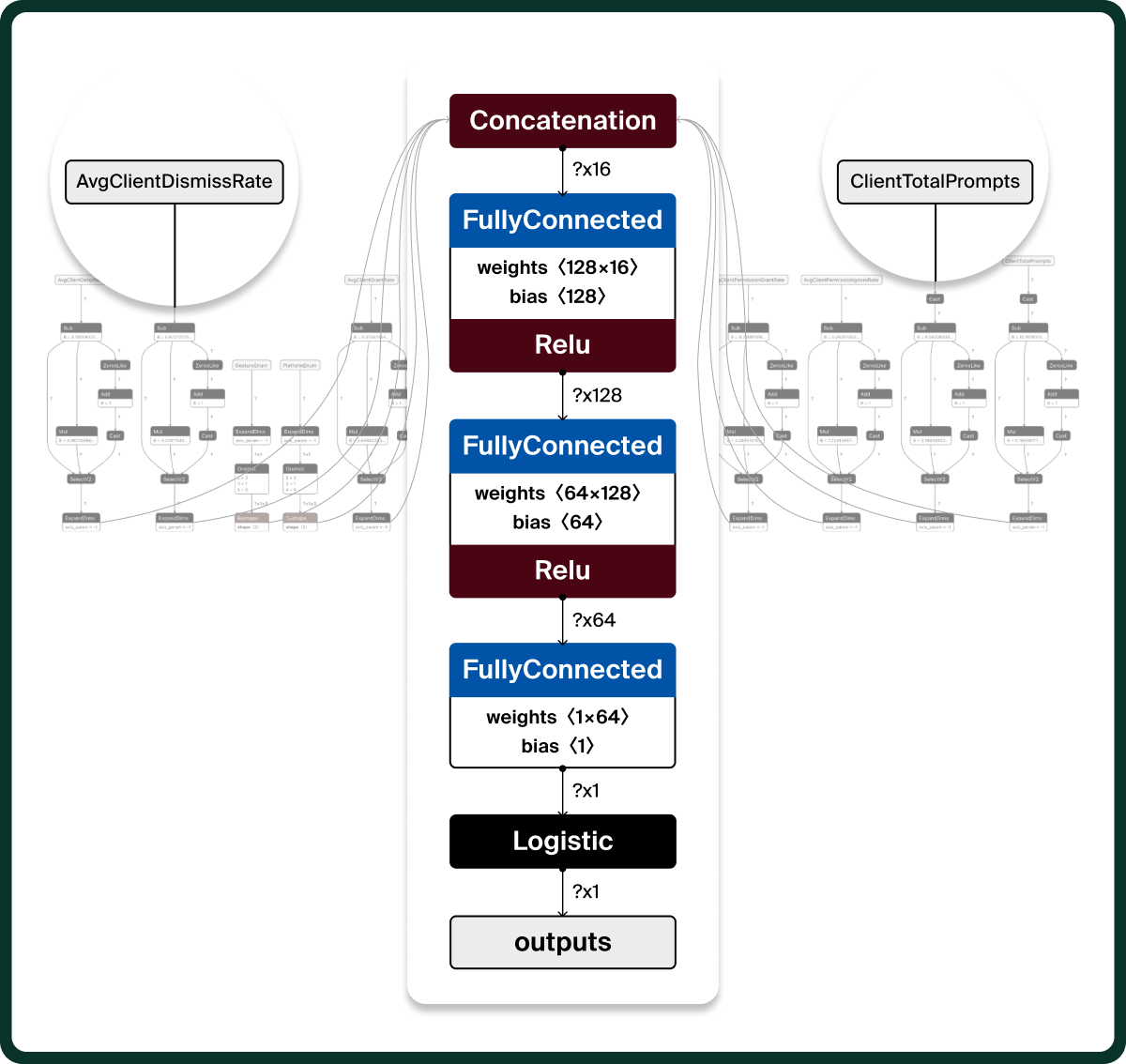
Let’s take a quick look at what’s happening:
- The permission statistics from the browser are mapped into the model features (or inputs)
- Each feature is centered, scaled, and masked if missing (as shown in the top section)
- The normalized feature values are passed through two (nonlinear) dense layers that learn interactions between features
- For example, the relationship between ignore rates, total notification counts, and the platform (Mobile/Desktop)
- A final linear layer produces a logit, which is converted into a single probability output
All of this happens on-device, each time the browser wants to determine what type of notification request to show.
The real intelligence of this model is derived from the training that Google performed to produce its weights and biases. Unfortunately, that training data is not publicly available.
- Side note: For this use case specifically, the Optimization Guide can alternatively run a cloud-based (non-local) model, which receives the page as text embeddings. This happens if the user enables “Make searches and browsing better” in Chromium settings. It is off by default.

What does my browser use?
At this point, you may be wondering which of these 70+ optimization targets are actually on your device.
Chromium has many internal pages for debugging purposes. Information about the Optimization Guide can be found in chrome://optimization-guide-internals. When you open it, switch to the “Models” tab to see all of the models that the browser has already downloaded. On my browser, there are currently 13 entries, for example:
When a Chromium component asks for a model from the Optimization Guide, it downloads the model from Google’s servers and keeps it in a folder called optimization_guide_model_store. The models are automatically updated by the browser in the background.
If you’re interested in user segmentation, which is also part of the Optimization Guide, you can view chrome://segmentation-internals instead.
AI services - ChromeML
In addition to the lightweight models maintained by the Optimization Guide, Google added a state-of-the-art small language model into Chrome called Gemini Nano. This is part of Chrome’s Built-in AI initiative, which you can read about here.
This initiative adds web APIs for developers to run AI tasks on-device. Right now, the most supported (but still not very widely supported) API is the Summarizer API, which summarizes text using local AI. Chrome also offers local language detection and translation through a similar interface. Gemini Nano is automatically downloaded to your device once a site you browse to invokes one of these APIs.
The Summarizer API is available on Chrome and Edge versions 138 and up. On Edge, which is also Chromium under the hood, this API uses Microsoft’s Phi 4 Mini model instead of Gemini Nano.
These models are quite large, taking up multiple GB of disk space and memory to execute. Therefore, they are only downloaded on compatible devices, depending on the hardware and disk space available.
Information about this feature can be seen in chrome://on-device-internals. You can see the state, name, and disk usage of the model if your browser has already downloaded it (meaning: a site requested it).
Unlike the TFLite environment that we’ve seen in the Optimization Guide so far, these models take full advantage of the device hardware, making use of the GPU for more efficient execution.
Unfortunately, the code relevant for the execution of these models is not part of the Chromium open source project. The implementation of ChromeML, which is the relevant class, is in a submodule that is not committed to Chromium’s git tree. This is part of the distinction between Chromium, the open-source project, and Google Chrome, the Google product.
By looking at the public API of ChromeML and reverse-engineering the binary, we can see references to LiteRT and MediaPipe, so it is reasonable to assume that this binary uses similar technology to actually execute the model.
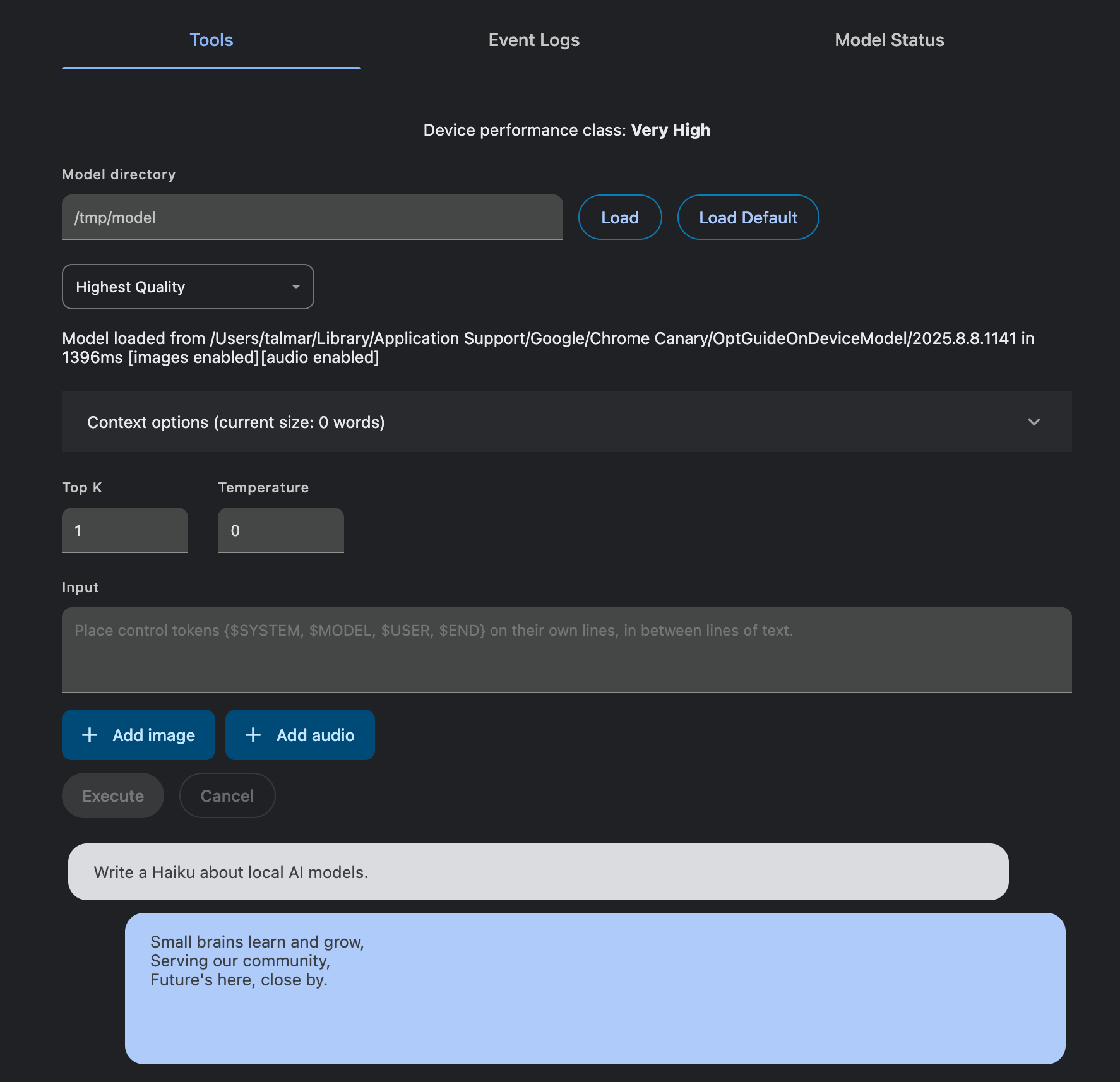
The chrome://on-device-internals page also shows us the directory in which this model is stored in Chrome, ~/Library/Application Support/Google/Chrome Canary/OptGuideOnDeviceModel/2025.8.8.1141, in my case. Unlike the usual model.tflite, this is a dedicated folder with a weights.bin file that contains the model itself, and a metadata.json file with the model name and other information.
This page also allows us to interact with the LLM outside the constraints of a specific Web API. To do so, we just need to click “Load Default”. Once it is loaded, we can write a prompt in the “Input” field and click “Execute”.
You may be thinking, Gemini Nano is a general-purpose LLM; how is it guided to perform specific tasks like summarization? It must have a system prompt somewhere in the source code… And you’d be right! It does need a system prompt to guide it on what to do, but that system prompt is NOT in Chromium’s source. Instead, it is also managed and downloaded by the Optimization Guide.
As we’ve previously established, not all optimization targets are actually models. That’s especially true for the target OPTIMIZATION_TARGET_MODEL_EXECUTION_FEATURE_SUMMARIZE. It does have a model.tflite file in its folder, but it’s completely empty. Instead, it has a file called on_device_model_execution_config.pb, which is a protobuf containing the actual prompt templates for summarization.
Decoding it, given the definition in Chromium, is straightforward. We can then piece together the system prompt from the segments included in the protobuf, like “You are a skilled assistant that accurately summarizes content provided in the TEXT section.”
There are also optimization targets for other built-in AI features, like writing assistance and the more general Prompt API.
The ChromeML execution environment
In general, Chromium is built around the Multi-Process architecture, meaning that certain browser features have their own OS process separate from the main browser process, for security and stability purposes. This is also true for these LLMs.
Chromium loads and executes the model in a utility process called “On-Device Model Service.” We can see that in Chromium’s Task Manager, once we run an AI task:
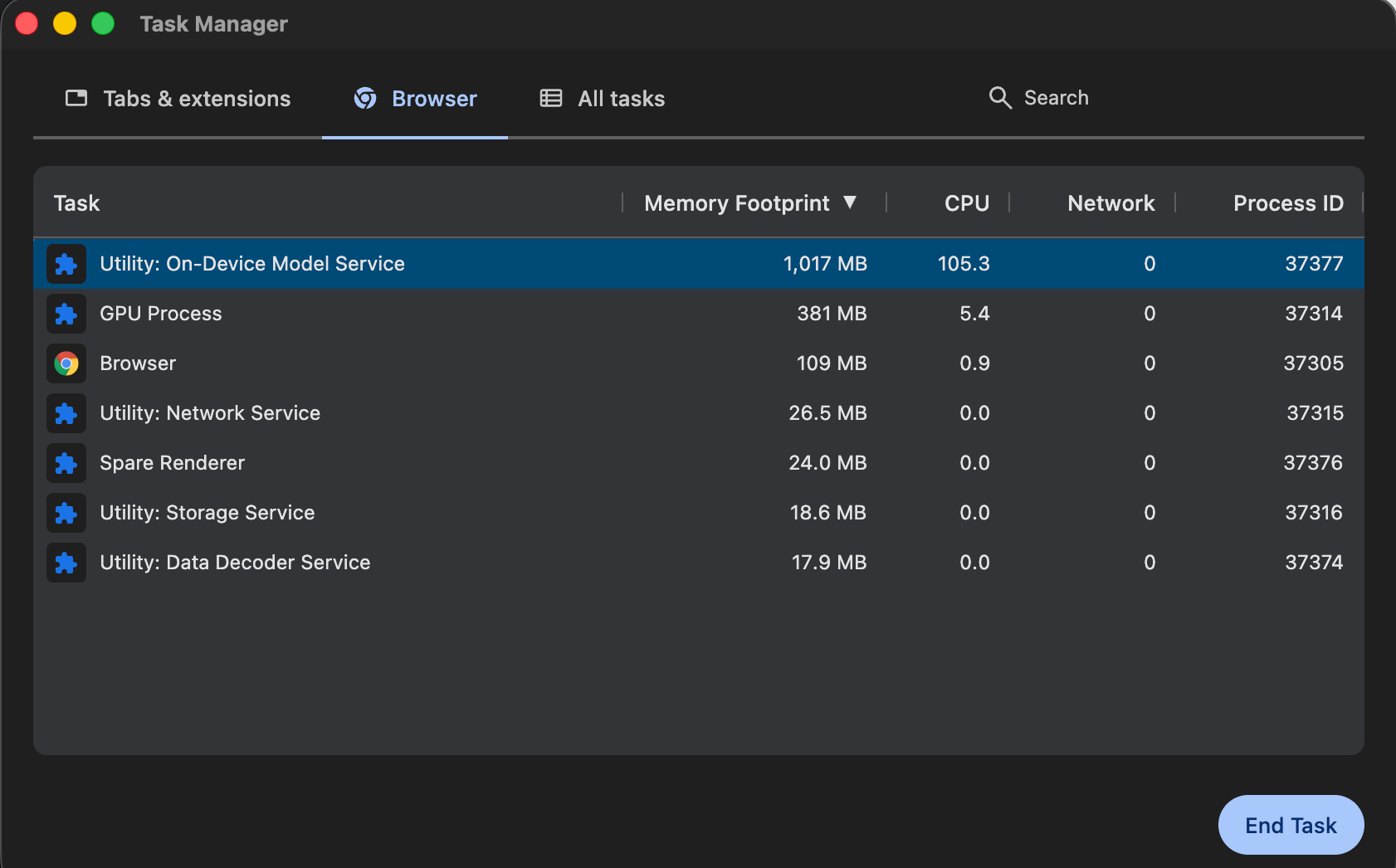
This helps Chromium and the user in multiple ways. These AI APIs are still experimental, and the executor does crash; I have encountered this many times myself. Since it is hosted in a separate process, the browser can easily recover and spin up a new utility process once a crash happens.
Furthermore, since this is a separate process, you can easily see the compute and memory usage of AI models from Chromium on your device. This provides clarity and easier diagnostics when you suddenly see that your RAM usage has skyrocketed, as it sometimes does.
There is also, of course, the security aspect of this separation. The process receives untrusted input from the web APIs, which may attempt to exploit vulnerabilities. The entire process is sandboxed at the OS level, blocking network access and limiting filesystem access while still allowing access to the hardware and necessary libraries.
WebNN - Bring your own AI
WebNN is a new web technology that allows web developers to run their own AI models on-device. Unlike the AI APIs we’ve covered, this is a more low-level interface. The W3C specification describes it like this:
“At the heart of neural networks is a computational graph of mathematical operations. These operations are the building blocks of modern machine learning technologies in computer vision, natural language processing, and robotics. The WebNN API is a specification for constructing, compiling, and executing computational graphs of neural networks.”
- Web Neural Network API, https://www.w3.org/TR/webnn
In practice, to run a model through WebNN, the web developer needs to build the model’s computational graph through the WebNN builder (exposed as a JavaScript object, MLGraphBuilder). Once the graph is finalized (builder.build(...)), Chromium loads this graph into a native library, depending on the OS:
- On Windows, if the version is Windows 11 24H2 or later, the model is loaded through the ONNX Runtime. If not, DirectML is used.
- On Mac, the model is loaded through CoreML.
- As a fallback (Android & Linux), LiteRT or TFLite is used.
As long as your model’s computational operations are supported by WebNN, which is true for most models, you can use WebNN to load it. This offers immense flexibility for many use cases. For example, a video conferencing app can load a machine learning model through WebNN to isolate your voice from background noise. A clothing store can generate a personalized simulation of its products for you on-device, while maintaining your privacy.
By leveraging OS-native libraries like ONNX or CoreML, the browser can run these models more efficiently. Previous solutions for running custom local AI models took advantage of WebAssembly (CPU) and WebGPU (GPU), but through these libraries, WebNN can also access dedicated AI hardware (NPU).
Unlike the Summarizer API we’ve seen, the model is not loaded to a dedicated “on-device AI” utility process. Instead, it is loaded to the more general GPU process (which has a similar sandboxing configuration).
WebNN is currently still in an experimental stage in Chromium, and users must enable it using a feature flag (or get access through Origin Trials); you can track its progress here. Once it becomes available by default, other browsers are expected to adopt it as well. Firefox has also shown its intention to support the specification.
Where the Enterprise Browser meets AI
While Chromium’s built-in AI APIs and WebNN provide a solid foundation for developers, adopting AI features at an organizational scale introduces new challenges, especially when we consider that local AI is just a subset of how an organization may use AI. The core issue is not AI itself, but rather the environment AI runs in. Traditional AI tools are designed for individual productivity—they lack the visibility, policy controls, and contextual enrichment enterprises need to scale AI safely and rapidly.
Island, as a browser, has a unique position in the stack that allows it to address this issue. For example:
- Browser-level interception: Because Island controls the browser environment, it can inspect prompts and responses in real-time, including those sent to third-party AI providers through the web, and apply data redaction or blocking policies before sensitive information ever leaves the device. No need for SSL decryption or man-in-the-middle proxies; the browser sees the plaintext.
- Context-awareness: Island can embed AI capabilities (including external LLMs) directly into the browser workspace, automatically injecting enterprise context—such as the current user's role, the applications they're working in, or approved knowledge sources—into prompts. This significantly improves productivity while keeping data safe.
- Security controls: AI agents running in Island’s environment have protections against prompt injection and other web-based or document-based attacks. Agents can interact with enterprise web applications through controlled interfaces, with human-in-the-loop checkpoints and audit logging built into the execution layer.
- Provider flexibility: Because Island operates at the browser level, these security and governance features work consistently across any AI provider—whether employees are using ChatGPT, Claude, Gemini, or other internal/external tools—without locking the organization into a single vendor.
In short: Chromium defines how AI runs in the browser; Island lets the enterprise actually use it, by adding controls, visibility, and more—regardless of which AI provider is used.
Ending notes
As we’ve seen, Chromium’s approach to local AI isn’t a single system. It’s a set of multiple layers, each serving a different purpose: the Optimization Guide quietly runs dozens of small, specialized models to make the browser itself smarter. ChromeML and Gemini Nano bring general-purpose language-model capabilities to web developers through high-level APIs like the Summarizer API. WebNN opens the door for developers to run any model they want, with direct access to GPU and NPU hardware through OS-native libraries.
But while Chromium defines how AI runs in the browser, it leaves out the “who decides what's allowed” layer. This is where Enterprise Browsers like Island come in: they operate within Chromium, but add governance controls that traditional AI tools lack. The browser's position in the stack makes it a natural control point for AI policy enforcement, whether that's intercepting, enriching, or securing usage.
AI is already deeply integrated into the Chromium ecosystem, and we may see local AI through the web becoming a more common practice soon. With the browser already behaving like a standalone operating system with many custom apps and APIs, this is hardly surprising—it’s the natural evolution of the most popular platform in the world.

Tal is a Senior Software Engineer at Island, currently working in the AI group where he focuses on integrating AI capabilities into the browser. Previously, he contributed extensively to Island's Chromium codebase as part of the Core group. With years of experience in OS internals, low-level development, and cybersecurity, Tal brings a deep systems-level perspective to building intelligent browser features.

.png)

.svg)
.svg)

