.svg)
Android Anatomy 101: Deconstructing the Bundle
Island ships the same browser to a lot of customers, and not all of them want the same build. One needs different text on a screen, another a different app name and icon, a third a different internal API key compiled in. The same need shows up in our own testing, where automation has to run a release build with android:debuggable turned on.

The obvious way to produce these is a build per customer, and a special build per test run. That gets expensive fast. Our CI is well cached, but a full app build still takes a long time, and we work on a Chromium fork, where anything that touches the build process is costly to maintain and slow to change.
So we built a post-compilation pipeline. One finished app goes in, a customized one comes out, and it runs in production today. Getting there meant learning how an APK is actually assembled, because you cannot safely change a value without knowing how it is stored. Not all resources are born equal. Some are plain files you can open and edit, and some are compiled into structures that accept only a very specific kind of modification, where a wrong guess produces an app that might not install.
Moving forward, I’m assuming you’re familiar with basic Android app development specifically and Java development in general, but not necessarily with the internals of the resulting APK. In this article, we'll take apart an APK and get hands-on experience modifying its building blocks without rebuilding the whole app. Along the way, we'll get a better grasp of how the app is constructed to begin with.
Back to Basics
Before we begin, let’s look at our workspace. This walkthrough uses a small standard Gradle project we build ourselves, whose main screen shows a single title. We use it as a playground but this technique works on any APK.
The project is at android-anatomy-sample. Clone it and follow its README first: it has instructions for setting up the Android environment, including the JDK and the Android SDK, plus populating $PATH with the tools relevant for this article (aapt2, zipalign, apksigner, and adb).
The main components:
app/src/main/
├── AndroidManifest.xml            # components and permissions
├── java/.../MainActivity.java     # the one screen
└── res/
    ├── layout/activity_main.xml   # the UI: a single TextView
    └── values/strings.xml         # our text, incl. screen_title = "Overview"
And of course running ./gradlew assembleDebug turns this readable source into a single compiled, signed APK. It lands under app/build/outputs/; copy it out under the shorter name the rest of this walkthrough uses:
$ ./gradlew assembleDebug
$ cp app/build/outputs/apk/debug/app-debug.apk app.apk
Also, let’s note our strings.xml file:
<?xml version="1.0" encoding="utf-8"?>
<resources>
    <string name="app_name">Anatomy Sample</string>
    <string name="screen_title">Overview</string>
</resources>
We can see our label is right there as plain text - hold that thought because once we build it, it won’t be.
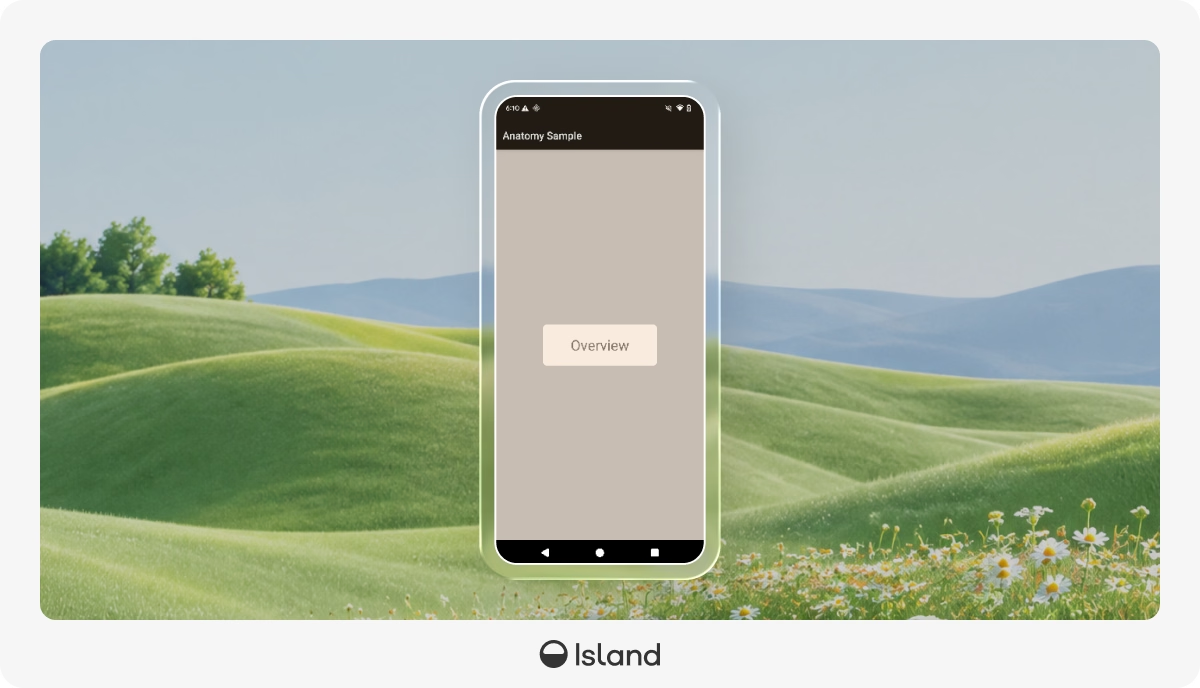
It’s Just a ZIP, Until it Isn’t
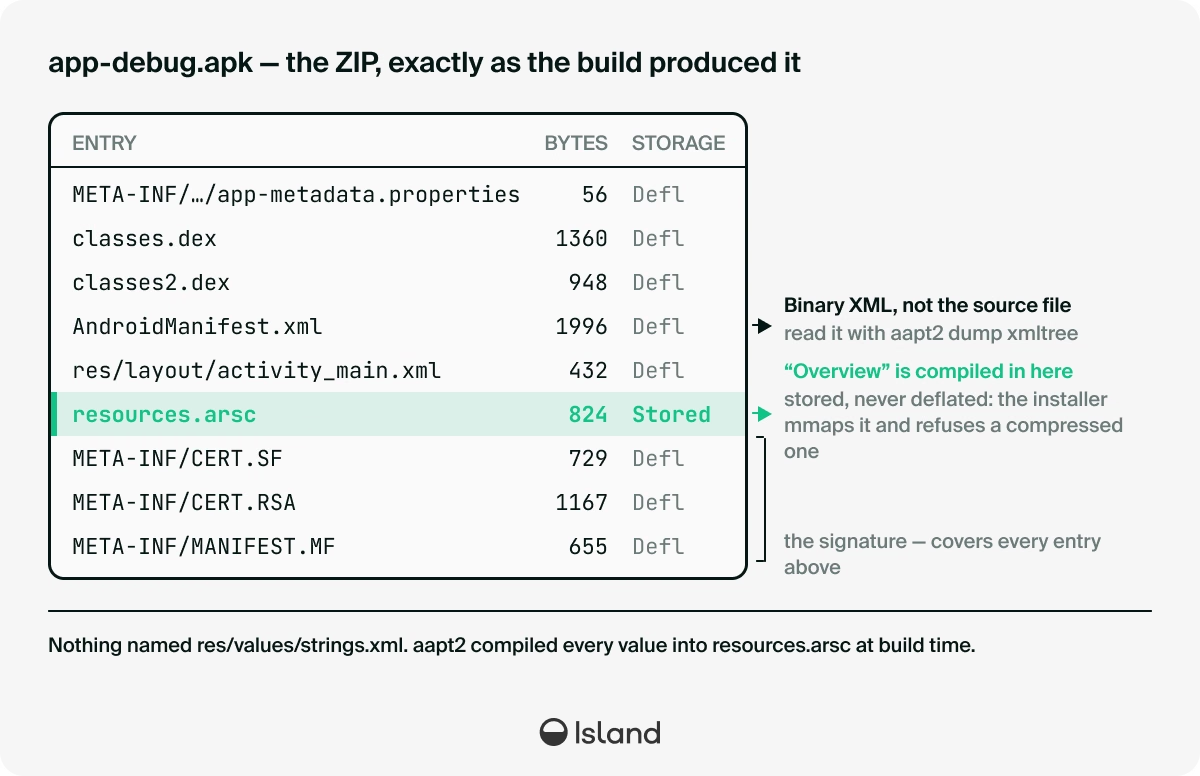
An APK is basically a ZIP file with extra steps - let’s examine it by unzipping the APK:
$ unzip -o app.apk -d extracted/
Let’s look at the tree we got:
├── extracted
│   ├── AndroidManifest.xml
│   ├── classes.dex
│   ├── classes2.dex
│   ├── META-INF
│   │   ├── CERT.RSA
│   │   ├── CERT.SF
│   │   ├── com
│   │   │   └── android
│   │   │       └── build
│   │   │           └── gradle
│   │   │               └── app-metadata.properties
│   │   └── MANIFEST.MF
│   ├── res
│   │   └── layout
│   │       └── activity_main.xml
│   └── resources.arsc
└── app.apk
Each entry has a job, and the supporting cast is worth a quick look before we zoom in on the one file we need to change.
AndroidManifest.xml declares the app's components, permissions, and metadata. However, it is not the text file from source: the build compiles it to Android's binary XML, often called AXML. For instance, this is the content of our current manifest:
$ cat extracted/AndroidManifest.xml
�d�2Fd~����"Xbjz���6Jt�.BT��labelname
minSdkVersionrted
             versionCode
                        versionNametargetSdkVersion
                                                   allowBackupextractNativeLibscompileSdkVersioncompileSdkVersionCodename1.014actioactivityandroidandroid.intent.action.MAIN android.i
ntent.category.LAUNCHER
intent-filtemanifestpackageplatformBuildVersionCodeplatformBuildVersionNamuses-sdk8inActivity*http://schemas.android.com/apk/res/android
                                                                                   ��rs�����������������
���"
�������������������"��������t
                             ���������������������      �������L��������������$��������8���������������8�������������������������������
                                                                                                                                       ��������������������%
Textual XML is human readable and editable but is complex to parse. Android's binary XML is a compact representation that is easy to parse, which means the system can easily read the manifest at install time without running a general-purpose XML parser. This moves XML parsing complexity to build time.
classes.dex (and classes2.dex here) hold the compiled Java and Kotlin as dex bytecode, a register-based format the Android runtime loads rather than JVM .class files. Apps span several dex files once they grow past the per-file method limit; debug builds also split them for faster incremental dexing, which is why two appear here.
res/ holds the app's compiled resources, such as the binary-XML layouts under res/layout/ and drawables.
META-INF/ holds the v1 (JAR) signature (MANIFEST.MF, CERT.SF, CERT.RSA) plus AGP's app-metadata.properties. A signature ties the APK to whoever built it, and Android accepts an update only when the same key has signed it. The version numbers are different means of signing rather than successive revisions. v1 comes from JAR signing and hashes each entry into the META-INF directory, which leaves the archive's own structure uncovered. v2 signs the whole file as one range of bytes instead, so it cannot live inside an entry: it sits in an APK Signing Block between the entries and the central directory, which is why it does not appear in the tree above. v3 keeps that format and adds key rotation. The schemes coexist, so a normal APK carries several at once and each device verifies with the newest it understands.
resources.arsc is the compiled resource table, and the file this article spends most of its time in. Note that under the res/ directory, we won’t find any references to the original res/values/ directory content, as they were compiled into this file.
In addition, if we were to build the app with native code (like we do with Chromium), we would’ve seen a lib directory, with a subdirectory for each ABI, containing the libraries compiled for that ABI.
The Resource Table
As we mentioned, the contents of res/values/strings.xml are missing from the zip we just unpacked. In the source we modify an XML, but the app building process uses the aapt2 tool to compile these values into a different structure. Let’s perform a small inspection to display it:
$ grep -rl "Overview" extracted/res extracted/AndroidManifest.xml
$        # nothing: the text sources don't contain it
$ strings extracted/resources.arsc | grep -n "Overview"
2:Overview
However, we can’t actually edit this file plainly, as it’s in a very specific binary format:
$ hexdump -C extracted/resources.arsc
00000000  02 00 0c 00 38 03 00 00  01 00 00 00 01 00 1c 00  |....8...........|
00000010  64 00 00 00 03 00 00 00  00 00 00 00 00 01 00 00  |d...............|
00000020  28 00 00 00 00 00 00 00  00 00 00 00 11 00 00 00  |(...............|
00000030  1c 00 00 00 0e 0e 41 6e  61 74 6f 6d 79 20 53 61  |......Anatomy Sa|
00000040  6d 70 6c 65 00 08 08 4f  76 65 72 76 69 65 77 00  |mple...Overview.|
00000050  1c 1c 72 65 73 2f 6c 61  79 6f 75 74 2f 61 63 74  |..res/layout/act|
00000060  69 76 69 74 79 5f 6d 61  69 6e 2e 78 6d 6c 00 00  |ivity_main.xml..|
00000070  00 02 20 01 c8 02 00 00  7f 00 00 00 63 00 6f 00  |.. .........c.o.|
00000080  6d 00 2e 00 65 00 78 00  61 00 6d 00 70 00 6c 00  |m...e.x.a.m.p.l.|
00000090  65 00 2e 00 61 00 6e 00  61 00 74 00 6f 00 6d 00  |e...a.n.a.t.o.m.|
000000a0  79 00 00 00 00 00 00 00  00 00 00 00 00 00 00 00  |y...............|
000000b0  00 00 00 00 00 00 00 00  00 00 00 00 00 00 00 00  |................|
*
00000170  00 00 00 00 00 00 00 00  00 00 00 00 20 01 00 00  |............ ...|
00000180  00 00 00 00 64 01 00 00  00 00 00 00 00 00 00 00  |....d...........|
00000190  01 00 1c 00 44 00 00 00  02 00 00 00 00 00 00 00  |....D...........|
000001a0  00 00 00 00 24 00 00 00  00 00 00 00 00 00 00 00  |....$...........|
000001b0  10 00 00 00 06 00 6c 00  61 00 79 00 6f 00 75 00  |......l.a.y.o.u.|
000001c0  74 00 00 00 06 00 73 00  74 00 72 00 69 00 6e 00  |t.....s.t.r.i.n.|
000001d0  67 00 00 00 01 00 1c 00  54 00 00 00 03 00 00 00  |g.......T.......|
000001e0  00 00 00 00 00 01 00 00  28 00 00 00 00 00 00 00  |........(.......|
000001f0  00 00 00 00 10 00 00 00  1b 00 00 00 0d 0d 61 63  |..............ac|
00000200  74 69 76 69 74 79 5f 6d  61 69 6e 00 08 08 61 70  |tivity_main...ap|
00000210  70 5f 6e 61 6d 65 00 0c  0c 73 63 72 65 65 6e 5f  |p_name...screen_|
00000220  74 69 74 6c 65 00 00 00  02 02 10 00 14 00 00 00  |title...........|
00000230  01 00 00 00 01 00 00 00  00 00 00 00 01 02 54 00  |..............T.|
00000240  68 00 00 00 01 00 00 00  01 00 00 00 58 00 00 00  |h...........X...|
00000250  40 00 00 00 00 00 00 00  00 00 00 00 00 00 00 00  |@...............|
00000260  00 00 00 00 00 00 00 00  00 00 00 00 00 00 00 00  |................|
*
00000290  00 00 00 00 08 00 00 00  00 00 00 00 08 00 00 03  |................|
000002a0  02 00 00 00 02 02 10 00  18 00 00 00 02 00 00 00  |................|
000002b0  02 00 00 00 00 00 00 00  00 00 00 00 01 02 54 00  |..............T.|
000002c0  7c 00 00 00 02 00 00 00  02 00 00 00 5c 00 00 00  ||...........\...|
000002d0  40 00 00 00 00 00 00 00  00 00 00 00 00 00 00 00  |@...............|
000002e0  00 00 00 00 00 00 00 00  00 00 00 00 00 00 00 00  |................|
*
00000310  00 00 00 00 10 00 00 00  08 00 00 00 01 00 00 00  |................|
00000320  08 00 00 03 00 00 00 00  08 00 00 00 02 00 00 00  |................|
00000330  08 00 00 03 01 00 00 00                           |........|
To see why the string moved, it helps to know what Android resources are for. Anything that might vary by device or locale, and anything you would rather not hardcode, lives as a resource: strings, layouts, drawables, colors, dimensions. Code and layouts never embed those values directly. They reference them, and the system hands back the right one at runtime.
Making that work takes two things, and aapt2 produces both from your res/ directory at build time. The first is the resource table, found in resources.arsc: a compiled set of every resource in the app, grouped by type, each holding one or more values. The second is R, a set of generated integer constants, one per resource, so everything can refer to a resource by a stable enum.
That number is the resource ID: a 32-bit integer laid out as 0xPPTTEEEE, one byte of package, one byte of type, then a two-byte entry index.
If we run the following, we should be able to see our label’s ID:
$ aapt2 dump resources app.apk
Binary APK
Package name=com.example.anatomy id=7f
  type layout id=01 entryCount=1
    resource 0x7f010000 layout/activity_main
      () (file) res/layout/activity_main.xml type=XML
  type string id=02 entryCount=2
    resource 0x7f020000 string/app_name
      () "Anatomy Sample"
    resource 0x7f020001 string/screen_title
      () "Overview"
We can see that in our instance our label's ID is 0x7f020001. It decodes left to right:
0x7fis the package, one of a small set of values:0x7fis the app's own resources, which includes the XML files from the source and AARs and Gradle library resources that the app links with.0x01is the framework'sandroid.*resources.0x00for a runtime shared library, which gets a real byte only when an app loads it.com.google.android.ext.sharedfor example, ships this way.
0x02is the type. Each resource type (string,layout,drawable, …) is numbered per package; in this build,0x02is thestringtype.0x0001is the entry, a zero-based index into that type. Our two strings show the counter directly: in the output of the command aboveapp_nameis entry0andscreen_titleis entry1.
So 0x7f020001 reads as "app package, string type, second entry," and that one integer is all the running app ever uses to reach the text.
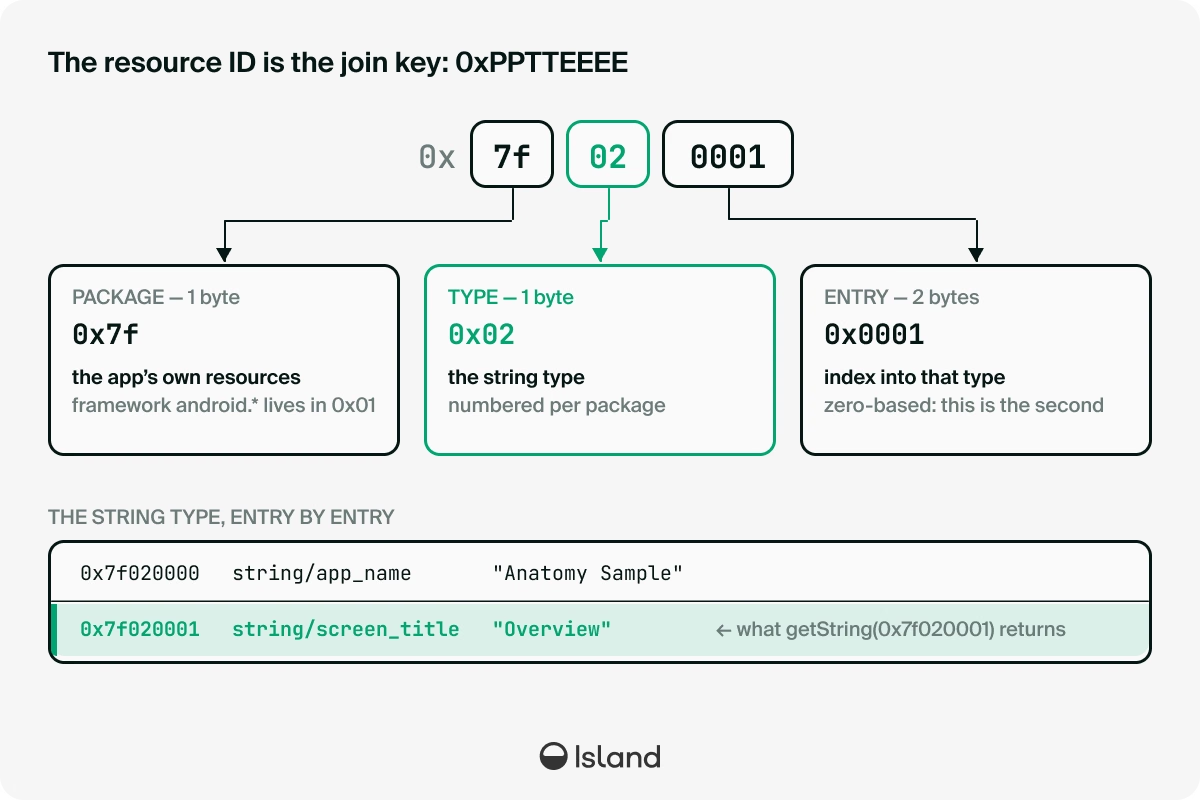
The ID is the joint key that ties the system together. When you write @string/screen_title in a layout or R.string.screen_title in Java, aapt2 and the compiler replace that symbolic name with the integer 0x7f020001. Nothing symbolic survives into the running app: at runtime, getString(0x7f020001) walks the table to entry 1 of the string type and returns its value. The name screen_title was only ever a build-time convenience.
aapt2 link emits R as a symbol table, R.txt, one line per resource:
int string screen_title 0x7f020001The R class your code compiles against is generated from that table, and these days it arrives already compiled, as R.jar, rather than as a generated source. R.txt is the source of truth and R.jar is a view of it.
R.txt never goes into the APK, so resource name obfuscation cannot reach it. When a release build strips the names out of resources.arsc, that file is still what maps screen_title to its ID.
One resource ID can map to many values. Each entry holds a list of configuration values: a default, plus optional overrides for specific locales, densities, or API levels (values-es/, values-xxhdpi/, values-v31/), and at runtime the framework picks the closest match to the device. Our screen_title has only a default, but it is still stored as a config-keyed value inside a list, a shape that becomes concrete the moment we open the table up.
Finally, names. A debug build keeps resource names in the table, so you can find screen_title by name. A release build with resource-name obfuscation collapses every name in resources.arsc to a single placeholder to save space, leaving only IDs. The values and IDs are all still there and the app runs fine, but the human-readable names are gone from the shipped table, which is why R.txt and the ID are the reliable way to address a resource. Note that we would need to keep this R.txt file for future reference, like debugging purposes for example.
Reading an APK with aapt2
Let’s take a quick break, and give a brief look at the useful aapt2 tool. aapt2, which stands for Android Asset Packaging Tool, version 2, is a build time program that’s in charge of compiling res/ into the resources.arsc table and R we just described. It ships with the Android SDK build-tools, and the same binary that writes those artifacts can also read them back, which is what makes it the tool for taking an APK apart (resource-wise), rather than just building a custom one.
Every aapt2 command in this piece is one of two commands - dump and convert.
The dump command reads a finished APK and prints part of it in human form, changing nothing. There are multiple subcommands to the dump action, determining which part of the APK to inspect.
aapt2 dump badging- the high-level declarations: package name, version, permissions, the<application>flags. The install-time summary.aapt2 dump resources- the full resource table, every type and entry with its values. This is the one we use to find our string.aapt2 dump strings- just the string pool, the raw text values with none of the resource-table structure around them.aapt2 dump xmltree- a compiled binary XML file (the manifest, or anything underres/layout/) decoded back into a readable tree.
The convert command does change the package: it transcodes the resource table and every compiled XML between binary and protobuf form, and produces an APK based on it, selected with --output-format binary or --output-format proto. The binary form is what devices run; the protobuf form is a schema'd message we can open, set one field on, and re-encode, without ever computing a byte offset ourselves. The whole second half of this blog post rests on that round-trip.
That is the full surface: dump to look, convert to round-trip. Everything after this is choosing which field to change once the package is open.
Finding Our String
Let’s run aapt2 against our app:
$ aapt2 dump resources app.apk
Binary APK
Package name=com.example.anatomy id=7f
  type layout id=01 entryCount=1
    resource 0x7f010000 layout/activity_main
      () (file) res/layout/activity_main.xml type=XML
  type string id=02 entryCount=2
    resource 0x7f020000 string/app_name
      () "Anatomy Sample"
    resource 0x7f020001 string/screen_title
      () "Overview"
We can clearly see the package resource id is 7f, and specifically the Overview was labeled as string/screen_title and was assigned the ID 0x7f020001.
We could open resources.arsc in a hex editor and overwrite the bytes, but a value is not simply sitting at a fixed address. Within a type, the runtime reaches an entry through an offset table, and that table is not stored just one way. Dense is what aapt2 produces by default - two more compact encodings exist, but a build only gets them if it asks, and for the purpose of this article we’ll not discuss them in-depth.
Patching the String
The string is sitting in the file as plain ASCII, so we can find it without the need to understand anything about the format:
$ xxd extracted/resources.arsc | grep Overview
00000040: 6d70 6c65 0008 084f 7665 7276 6965 7700  mple...Overview.
That is enough for the crudest possible edit: swap those eight bytes for eight new ones - “Insights” is the same length, so nothing around it should move. Let’s use the following Python snippet:
with open("extracted/resources.arsc", "rb") as fd:
    modified = fd.read().replace(b"Overview", b"Insights")
with open("extracted/resources.arsc", "wb") as fd:
    fd.write(modified)
Now we can zip the resources into the apk and re-sign it:
$ cp app.apk patched.apk
$ (cd extracted && zip -X ../patched.apk resources.arsc)
$ apksigner sign --ks ~/.android/debug.keystore --ks-pass pass:android \
    --ks-key-alias androiddebugkey --key-pass pass:android patched.apk
However, when we try to install it, we get the following error:
$ adb install -r patched.apk
Failure [-124: Failed parse during installPackageLI: Targeting R+ (version 30 and
above) requires the resources.arsc of installed APKs to be stored uncompressed and
aligned on a 4-byte boundary]
The error names two conditions, and the zip command broke the first. An APK holds each entry one of two ways: deflated - compressed and unreadable until something inflates it into memory, or stored - written verbatim. zip deflates by default, while zip -0 stores. The table has to be stored, and 4-byte aligned, because the framework reads it directly out of the file instead of unpacking it. We’ll elaborate further about this later when we discuss the zipalign command.
$ cp app.apk patched.apk
$ (cd extracted && zip -0 -X ../patched.apk resources.arsc)
$ zipalign -f -p 4 patched.apk aligned.apk
$ apksigner sign --ks ~/.android/debug.keystore --ks-pass pass:android \
    --ks-key-alias androiddebugkey --key-pass pass:android aligned.apk
$ adb install -r aligned.apk
We can see the app was successfully installed and modified.
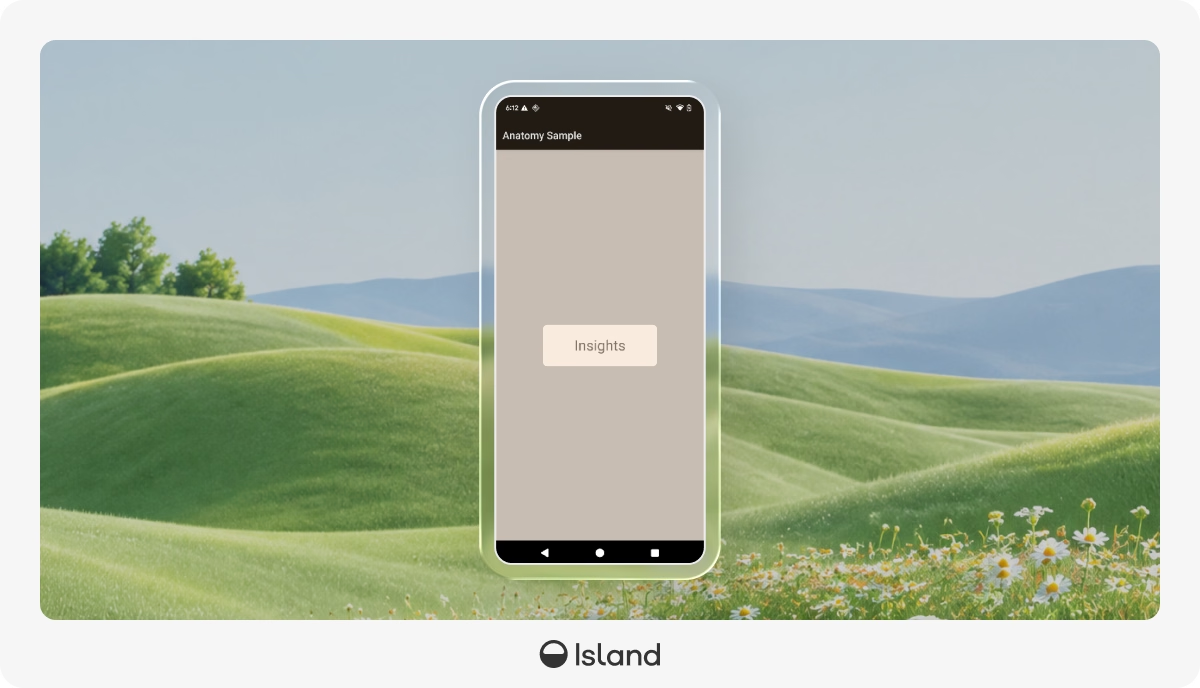
However, you’ll note that trying to repeat this flow with a string of a different length (such as “Dashboard”) will not work, even if we modify the length bytes preceding it - it messes up the resources table.
What Zipalign Actually Does
We have run zipalign a couple of times now without saying what it does, and the order we ran it in was not arbitrary. Let’s take a break and discuss this tool for a moment.
resources.arsc is consulted on nearly every UI operation, so the framework avoids unzipping it. It memory-maps the table's byte range straight out of the APK and reads it where it lies, and because those pages come from the file, every process mapping the same APK shares them. A mapping exposes the bytes exactly as they are in the APK, so the table has to already be usable: nothing inflates it, and nothing moves it.
That is what reading in place means, and both halves of the -124 error we received before come from it. A deflated table is compressed bytes, unreadable without inflating first. A misaligned one is readable but not directly, because the table is full of 32-bit fields the runtime reaches through pointer casts, and a 32-bit read wants an address that is a multiple of 4. Shift the table by two bytes and every one of those fields straddles a word boundary.
It also explains why most entries are exempt:
$ zipalign -c -v 4 app.apk
Verifying alignment of app.apk (4)...
      87 META-INF/com/android/build/gradle/app-metadata.properties (OK - compressed)
     179 classes.dex (OK - compressed)
     956 classes2.dex (OK - compressed)
    1583 AndroidManifest.xml (OK - compressed)
    2364 res/layout/activity_main.xml (OK - compressed)
    2652 resources.arsc (OK)
    3522 META-INF/CERT.SF (OK - compressed)
    4044 META-INF/CERT.RSA (OK - compressed)
    5115 META-INF/MANIFEST.MF (OK - compressed)
Verification succesful
Every deflated entry reports OK - compressed whatever its offset, because it is inflated into the heap before anyone reads it and where it sat stops mattering. Only stored entries are read where they lie, so only they have to land on a boundary. Here that is resources.arsc at 2652, which is divisible by four.
The mechanism is smaller than it sounds. A ZIP entry is a local header, holding the name, the sizes and a short extra field, followed by the data. zipalign grows that extra field until the data lands where it should.
In a normal build you never type any of this, since AGP aligns the APK on the way out. It becomes our problem only because we rewrote an entry after the fact.
Patching the String, Properly
aapt2 can convert a compiled APK to and from protobuf form of the same resource table. In proto form, the table is an ordinary schema’d message: we set the field we want, let aapt2 re-encode the binary, and never touch a byte offset ourselves.
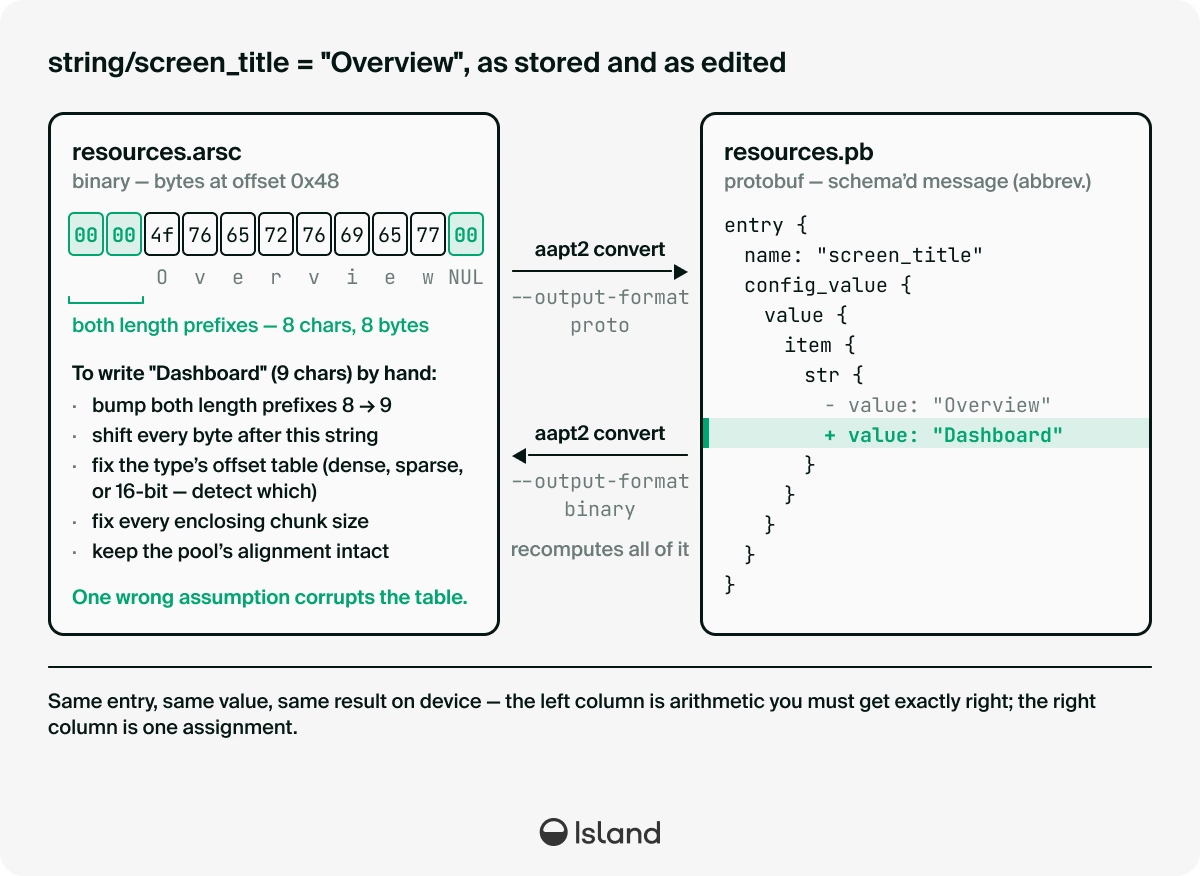
The bindings for that schema come from aapt2 itself, which publishes its Resources.proto (and the Configuration.proto it imports) alongside the binary. Compile them once with protoc and you have Resources_pb2 to import.
The desired version for the artifact is based on your AGP version (which can be found in the project’s root build.gradle). To find the relevant version, you can look at the available published versions and look for a version beginning with your AGP version. For example, our AGP version is 8.6.1 so we can take the artifact of 8.6.1-11315950. You can download the artifact directly from the link above, or via this snippet:
$ V=8.6.1-11315950
$ curl -sO https://dl.google.com/dl/android/maven2/com/android/tools/build/aapt2-proto/$V/aapt2-proto-$V.jar
$ unzip -oq aapt2-proto-$V.jar Resources.proto Configuration.proto -d protos
$ python3 -m venv venv && ./venv/bin/pip install -q protobuf grpcio-tools
$ ./venv/bin/python -m grpc_tools.protoc --proto_path=protos --python_out=. Configuration.proto Resources.proto
The aapt2-proto artifact carries the schema, so it needs to be compatible with the aapt2 that writes the protobuf rather than identical to it. Resources.proto moves slowly, and bindings generated from one 8.x artifact read output from a neighboring 8.x aapt2 without complaint, so pick the artifact closest to your build's AGP version and move on. Protobuf also carries fields it does not recognize straight through a round-trip, which means a slightly stale artifact costs you the ability to read a new field, not the integrity of the table you write back. In general, we just need to make sure that protobuf (the runtime) and grpcio-tools (the compiler) are both the latest version.
The whole edit is one pass: convert the APK to proto, set the value in the table, convert back to binary, and replace the rebuilt resources.arsc in the original archive.
Let’s get to scripting:
import subprocess, zipfile, Resources_pb2
def read(apk, name):
    with zipfile.ZipFile(apk) as z:
        return z.read(name)
def replace(src, dst, name, data):
    """Copy src -> dst, swapping one entry and preserving every entry's storage."""
    with zipfile.ZipFile(src) as zin, zipfile.ZipFile(dst, "w") as zout:
        for i in zin.infolist():
            zout.writestr(i, data if i.filename == name else zin.read(i.filename), i.compress_type)
# binary APK -> proto: the resource table becomes an editable resources.pb
subprocess.run(["aapt2", "convert", "--output-format", "proto", "-o", "proto.apk", "app.apk"], check=True)
# set the value in the schema'd table; any length, no byte offsets to maintain
table = Resources_pb2.ResourceTable()
table.ParseFromString(read("proto.apk", "resources.pb"))
for pkg in table.package:
    for typ in pkg.type:
        for entry in typ.entry:
            if entry.name == "screen_title":
                for cv in entry.config_value:
                    if cv.value.item.HasField("str"):
                        cv.value.item.str.value = "Dashboard"
replace("proto.apk", "proto-edited.apk", "resources.pb", table.SerializeToString())
# proto -> binary, then lift only the rebuilt resources.arsc into the original APK
subprocess.run(["aapt2", "convert", "--output-format", "binary", "-o", "binary.apk", "proto-edited.apk"], check=True)
replace("app.apk", "patched.apk", "resources.arsc", read("binary.apk", "resources.arsc"))
The lookup in the middle is worth pulling apart, because every move in it is the code paying for something the model already told us. (Note the name change on the way through: the proto APK carries the table as resources.pb, and converting back produces resources.arsc again.)
The nested loops are the resource ID. There is no dictionary to look a name up in; the table is a hierarchy, and package → type → entry is exactly the 0xPPTTEEEE layout we discussed before, one loop per field of the ID. Walking all three levels is how you get from "the string called screen_title" to the single entry that 0x7f020001 addresses.
config_value is a list because one ID holds many values. This is the shape from earlier made concrete: an entry does not hold a value, it holds a value per configuration. Our screen_title has only a default, so the loop runs once, but an app with values-es/ would carry a second config value under the same entry, and changing only the Spanish string would mean selecting on cv.config rather than taking every one.
HasField("str") guards the value's type. In the schema an entry's item is a union: a string, a reference to another resource, a raw number, a filename. Exactly one is set, and checking for str before assigning keeps us from writing text into an entry that actually holds a @drawable reference or an integer, which the loop would otherwise do without complaint. The manifest edit below sets a different arm of that same union.
We matched on entry.name, which a debug build keeps. A release build with resource-name obfuscation collapses every name in the table to one placeholder, so there you match on the numeric ID instead, resolving names to IDs through the build's R.txt symbol table, which keeps them. Same edit, different lookup.
That leaves the replace() helper. Instead of re-zipping the archive, it copies each ZipInfo across and hands writestr that entry's original i.compress_type, so every entry keeps the exact storage the build gave it and only the named one changes at all. The final step uses it to swap only resources.arsc back into the original archive instead of shipping aapt2's repackaged binary.apk. aapt2 convert converts the protobufs back into Android’s binary format. Finally, since we change the archive, we need to re-align and re-sign the zip.
From here the finish is the one we already worked out by hand: align, re-sign, install.
$ zipalign -f -p 4 patched.apk aligned.apk
$ apksigner sign --ks ~/.android/debug.keystore --ks-pass pass:android \
    --ks-key-alias androiddebugkey --key-pass pass:android aligned.apk
$ adb install -r aligned.apk
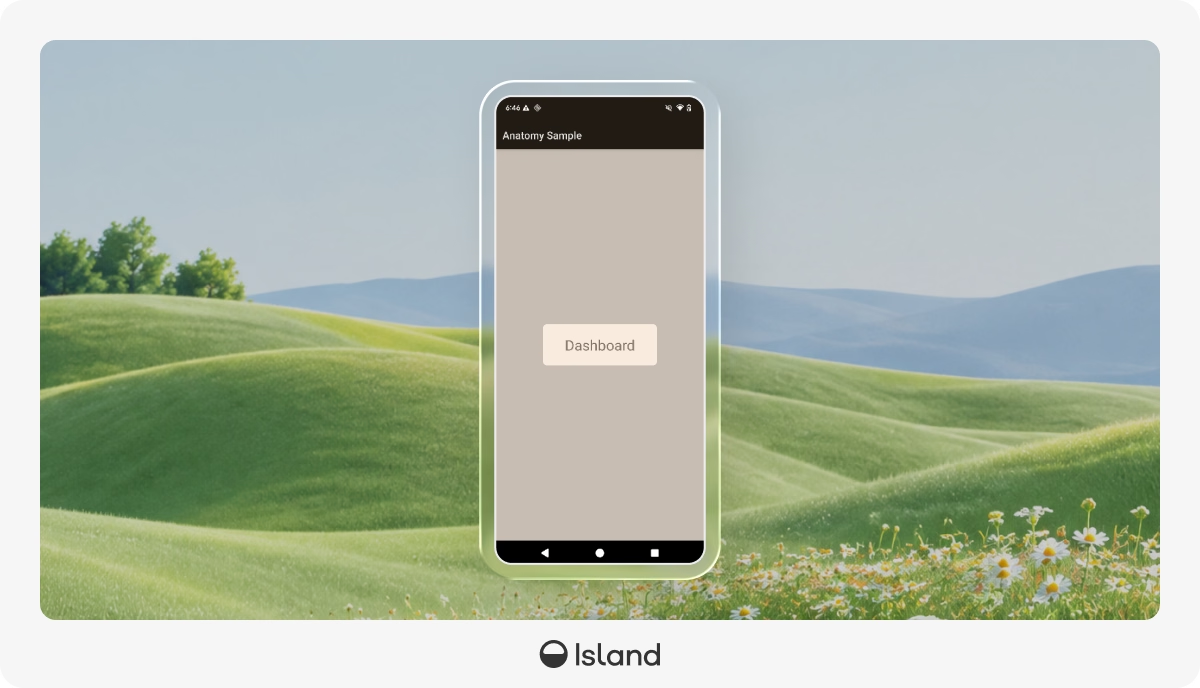
And voila - the title now reads Dashboard: nine characters where eight used to fit, the edit the byte-patch could not make.
The Same Move on the Manifest
The string lived in resources.arsc; the app's other compiled artifact is AndroidManifest.xml, and the same protobuf round-trip edits it too. This is the second half of what a post-build override does in practice: change not just visible text but manifest attributes. The classic example is android:debuggable.
A release build ships with debuggable off, so aapt2 dump badging says nothing about it. If we look at our release build, and run the following:
$ ./gradlew assembleRelease
$ cp app/build/outputs/apk/release/app-release-unsigned.apk release.apk
$ aapt2 dump badging release.apk | grep -i debuggable
We’ll see we get nothing.
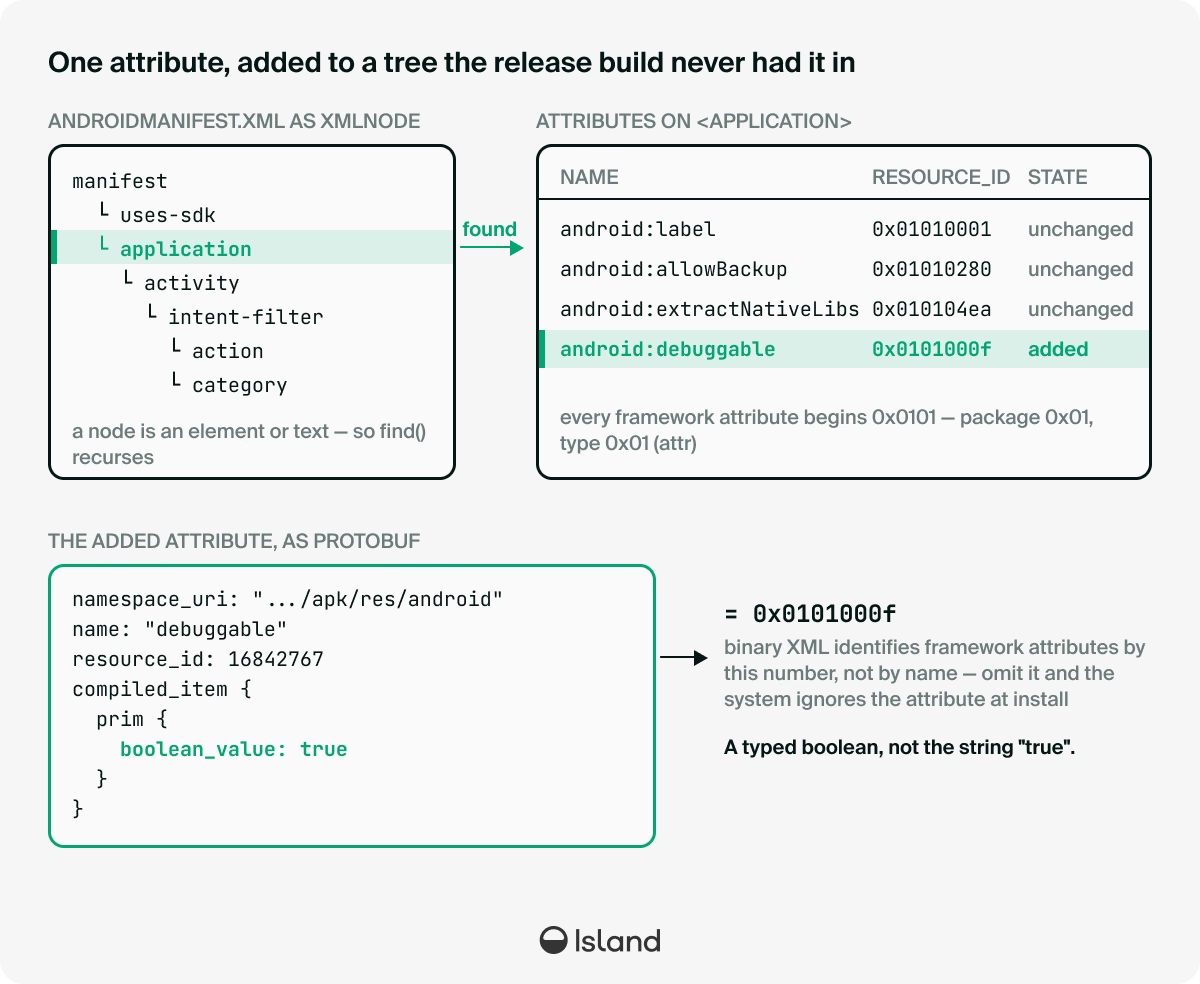
Turning it on normally means a special build. We can instead flip it on the finished APK. aapt2 convert --output-format proto turns AndroidManifest.xml into the same schema'd form as the resource table, an XmlNode tree. The override is one pass, the same shape as the resource edit: convert to proto, set the attribute on the <application> element, convert back, and swap the rebuilt manifest into the release APK:
import subprocess, zipfile, Resources_pb2
def read(apk, name):
    with zipfile.ZipFile(apk) as z:
        return z.read(name)
def replace(src, dst, name, data):
    with zipfile.ZipFile(src) as zin, zipfile.ZipFile(dst, "w") as zout:
        for i in zin.infolist():
            zout.writestr(i, data if i.filename == name else zin.read(i.filename), i.compress_type)
def child(el, name):
    return next((c.element for c in el.child
                 if c.HasField("element") and c.element.name == name), None)
ANDROID = "http://schemas.android.com/apk/res/android"
subprocess.run(["aapt2", "convert", "--output-format", "proto", "-o", "proto.apk", "release.apk"], check=True)
manifest = Resources_pb2.XmlNode()
manifest.ParseFromString(read("proto.apk", "AndroidManifest.xml"))
app = child(manifest.element, "application")
attr = next((a for a in app.attribute
             if a.name == "debuggable" and a.namespace_uri == ANDROID), None)
if attr is None:                                  # a release build has no debuggable attribute, so add it
    attr = app.attribute.add()
    attr.name = "debuggable"
    attr.namespace_uri = ANDROID
    attr.resource_id = 0x0101000f                 # android:debuggable
attr.compiled_item.prim.boolean_value = True      # a typed boolean, not a string
replace("proto.apk", "proto-edited.apk", "AndroidManifest.xml", manifest.SerializeToString())
subprocess.run(["aapt2", "convert", "--output-format", "binary", "-o", "binary.apk", "proto-edited.apk"], check=True)
replace("release.apk", "patched.apk", "AndroidManifest.xml", read("binary.apk", "AndroidManifest.xml"))
The resource table was a fixed three-level hierarchy. The manifest is a tree, and four details in the code are worth pulling apart:
Finding the node: <application> sits directly under <manifest>, so we go straight to it instead of searching the whole tree. Searching by name returns the first match anywhere, which is fine when there is only one <application>, but wrong for elements that repeat like <activity> and <meta-data>, which you tell apart by their android:name. HasField("element") is there because a node is either an element or text, and we need the element.
The match needs the namespace, not just the name. An attribute is only android:debuggable when its namespace_uri is http://schemas.android.com/apk/res/android. Names alone are not unique across namespaces. An app or a library can declare its own debuggable, so matching on both is what keeps the edit from landing on the wrong attribute.
Add or reuse, because builds differ. A release build has no debuggable attribute to set, so we append one - a debug build already has it and we only flip its value. The next(...) lookup paired with the if attr is None guard covers both, which is what lets you point this at any APK rather than only at a release build.
0x0101000f is a framework resource ID which was constructed as explained above - 0x01 for the framework, type 0x01 for attr, and entry 0x000f, the slot debuggable has held since it was the sixteenth attribute the framework declared. Those IDs are frozen forever because every compiled app has them baked in, which is why this one is a hardcodable constant, android.R.attr.debuggable, while screen_title has to be looked up per build.
And as before, only AndroidManifest.xml is lifted back into the original release APK, so everything else stays exactly as the build produced it. From here it is the same finish as every other edit, align and re-sign, and aapt2 dump badging confirms the flip:
$ zipalign -f -p 4 patched.apk aligned.apk
$ apksigner sign --ks ~/.android/debug.keystore --ks-pass pass:android \
    --ks-key-alias androiddebugkey --key-pass pass:android aligned.apk
$ aapt2 dump badging aligned.apk | grep -i debuggable
application-debuggable
Same pattern, different tree: binary artifact → proto → structured edit → binary → re-sign. Strings and manifest attributes are exactly what Island overrides after the build, to brand and configure one built APK for different customers without rebuilding.
APK vs AAB
After our complex journey of patching an APK, we should address the elephant in the room - the artifact actually being shipped to the Play Store is an AAB, rather than an APK, which happens to have a rather simpler procedure to reach our goal.
An AAB is a ZIP as well, and its insides are friendlier than an APK's, not harder: a base/ module, optional feature modules, a BundleConfig.pb, and both of the artifacts we just spent this article editing are already protobuf inside it. base/manifest/AndroidManifest.xml is an XmlNode and base/resources.pb is a ResourceTable, so the same generated bindings parse them straight out of the archive. The aapt2 convert round-trip is not needed on either side of the edit, because there is no binary encoding to convert out of.
What does not transfer is everything after the edit. You cannot adb install an .aab, because a bundle is not a finished artifact but the input to one: the Play Store (or bundletool locally) generates the per-device split APKs users actually install. Play signs those with the app signing key it holds. Run locally, bundletool signs them with a keystore you supply. Either way the binaries that reach users are produced and signed downstream of your edit, and on the Play path, with a key you do not have.
Summary
Changing one word turned into a tour of the whole artifact: an APK is a ZIP, its strings are compiled into the binary resources.arsc table and referenced by numeric ID, editing them cleanly means going through aapt2's protobuf form rather than hacking bytes, and since the signature is computed over the whole file, any edit demands a re-sign, in the right order. None of it is magic once you have taken it apart.
All of the above can of course be done also by modifying the source, but it is not only a party trick either. Overriding a resource or a manifest attribute in a finished APK is a useful technique, and on a Chromium-based browser, where a rebuild is measured in hours rather than seconds, that can make a huge impact on both CI and CD.

Yuval Meerbaum is an Engineering Manager at Island, where he leads Android engineering and the agentless deployment and visibility of Island's AI protection. Before joining Island, he specialized in networking, OS research and low-level development. Alongside his browser work at Island, he is an active committer to the Chromium open-source project, and a longtime Linux enthusiast.





.svg)
.svg)

